LinuxLingo
LinuxLingo User Guide
LinuxLingo is a command-line application for learning Linux commands through an interactive shell simulator and a built-in quiz system. It is optimised for Computer Science students who want to build confidence with the Linux command line by typing real commands, seeing real output, and testing their knowledge with quizzes – all within a safe, in-memory virtual file system (VFS) that never touches your real files.
Who this guide is for: Computer Science students who want hands-on Linux practice in a safe sandbox, with immediate feedback and without affecting any real files on their computer.
- Quick Start
- Features
- Main Menu Commands
- Shell Simulator
- Navigation Commands
- File Operation Commands
- Text Processing Commands
- Permission Commands
- Information Commands
- Alias and History Commands
- Environment Management Commands
- Utility Commands
- Piping and Redirection
- Command Chaining
- Glob Expansion
- Variable Expansion
- Tab Completion
- Typo Suggestions
- Exam System
- Data Storage
- FAQ
- Known Issues
- Command Summary
Quick Start
- Ensure you have Java 17 or above installed in your computer.
- Download the latest
LinuxLingo.jarfrom the LinuxLingo releases page. - Copy the file to a folder you want to use as the home folder for LinuxLingo.
-
Open a command terminal,
cdinto the folder you put the JAR file in, and run:java -jar LinuxLingo.jar - A welcome banner and a
linuxlingo>prompt should appear. Typehelpand press Enter to see available commands. - Some example commands to try:
shell– enter the Shell Simulator to practice Linux commands.exam– start a quiz on Linux topics.exit– exit the application.
- Refer to the Features section below for details on each command.
Features
[i] Notes about the command format:
- Words in
UPPER_CASEare parameters to be supplied by the user. e.g. incd DIRECTORY,DIRECTORYis a parameter:cd /home/user.- Items in square brackets
[...]are optional. e.g.cd [DIRECTORY]can be used ascdorcd /home.- Items with
...after them can be used multiple times. e.g.touch FILE [FILE...]can be used astouch a.txtortouch a.txt b.txt c.txt.- Flags (e.g.,
-r,-l) can appear in any order before file arguments. Short flags can be combined (e.g.,-lais equivalent to-l -a).- Both single quotes (
'...') and double quotes ("...") can be used to treat text as a single argument (e.g.,echo "hello world"). Inside single quotes, all characters are treated literally (no variable or glob expansion).- Outside of quotes, a backslash (
\) escapes the next character, treating it as a literal. e.g.echo hello\ worldpasseshello worldas a single argument.
Main Menu Commands
LinuxLingo has two modes of operation:
| Mode | How to Enter | Description |
|---|---|---|
| Interactive mode | java -jar LinuxLingo.jar (no arguments) |
Starts the main REPL. You can freely switch between shell, exam, and other commands. |
| One-shot mode | With command-line arguments (e.g., java -jar LinuxLingo.jar exec "ls") |
Executes a single command and exits. Useful for scripting or quick checks. |
When in interactive mode, the linuxlingo> prompt accepts the following top-level commands.
Entering the Shell Simulator: shell
Enters the interactive Shell Simulator where you can practice Linux commands on the virtual file system.
Format: shell
- You will see a shell prompt like
user@linuxlingo:/$. - Type
exitto return to the main menu.
Starting an Exam: exam
Starts an exam session. See the Exam System section for full details.
Format: exam [-t TOPIC] [-n COUNT] [-random] [-topics]
Examples:
exam– start an interactive exam (prompts you to choose a topic).exam -t navigation -n 5– 5 questions from the “navigation” topic.exam -random– one random question from any topic.exam -topics– list all available topics.
One-shot command execution: exec
Executes a single shell command and prints the result, without entering the Shell Simulator.
Format: exec "COMMAND" or exec -e ENV_NAME "COMMAND"
- The command string should be enclosed in quotes.
- Use
-e ENV_NAMEto run the command in a previously saved environment.
Examples:
exec "echo hello"– printshello.exec -e myenv "ls"– lists files in the saved environmentmyenv.
Viewing help: help
Displays a list of available main menu commands.
Format: help
Exiting the application: exit
Exits LinuxLingo.
Format: exit
Alternatives: quit
Shell Simulator
The Shell Simulator provides a Linux-like command-line environment backed by an in-memory virtual file system (VFS). All file and directory operations are performed within this VFS – no real files on your computer are created, modified, or deleted by shell commands.
When you enter the Shell Simulator, you will see a prompt like:
user@linuxlingo:/$
The prompt shows your current working directory. Type Linux commands and press Enter to execute them.
The default VFS contains the following directories: /home/user, /tmp, and /etc (with a hostname file).
Navigation Commands
Printing the working directory: pwd
Prints the absolute path of the current working directory.
Format: pwd
Example:
user@linuxlingo:/home/user$ pwd
/home/user
Changing directory: cd
Changes the current working directory.
Format: cd [DIRECTORY]
cdorcd ~– go to/home/user.cd ..– go to the parent directory.cd -– go to the previous working directory.cd /absolute/path– go to an absolute path.cd relative/path– go to a path relative to the current directory.
Examples:
user@linuxlingo:/$ cd /home/user
user@linuxlingo:/home/user$ cd ..
user@linuxlingo:/home$ cd -
user@linuxlingo:/home/user$
Listing directory contents: ls
Lists the contents of a directory.
Format: ls [-a] [-l] [-R] [DIRECTORY...]
-a– show all files, including hidden files (names starting with.). Note:.and..pseudo-entries are not displayed.-l– use long listing format, showing file type, permissions, link count, owner, group, size, and name.-R– list subdirectories recursively.- If no directory is given, lists the current directory.
Examples:
user@linuxlingo:/$ ls
home/
tmp/
etc/

user@linuxlingo:/$ ls -l /home
drwxr-xr-x  1 user user  0  user/

user@linuxlingo:/$ ls -a
.hidden
home/
tmp/
etc/
File Operation Commands
Creating directories: mkdir
Creates one or more directories.
Format: mkdir [-p] DIRECTORY [DIRECTORY...]
-p– create parent directories as needed (no error if they already exist).
Examples:
mkdir projects– create a single directory.mkdir -p projects/java/src– create nested directories.mkdir dir1 dir2 dir3– create multiple directories at once.
Creating files: touch
Creates one or more empty files. If a file already exists, the command has no effect.
Format: touch FILE [FILE...]
Examples:
touch readme.txt– create a single file.touch file1.txt file2.txt file3.txt– create multiple files at once.
Displaying file contents: cat
Displays the contents of one or more files. If multiple files are given, their contents are concatenated.
Format: cat [-n] FILE [FILE...]
-n– number all output lines.- Also accepts piped stdin (e.g.,
echo "text" | cat).
Example:
user@linuxlingo:/$ cat -n readme.txt
     1  Hello, world!
Outputting text: echo
Prints text to the terminal. Often used with redirection to write to files.
Format: echo [-n] [-e] [TEXT...]
-n– do not output a trailing newline.-e– interpret backslash escape sequences (\n,\t,\\,\a,\b).
Examples:
echo Hello World– printsHello World.echo "Hello World" > greeting.txt– writes text to a file.echo -e "line1\nline2"– prints two lines.
Removing files or directories: rm
Removes files or directories.
Format: rm [-r] [-f] FILE [FILE...]
-r– remove directories and their contents recursively.-f– force removal, ignore non-existent files without errors.
Examples:
rm file.txt– remove a file.rm -r projects/– remove a directory and its contents.rm -rf old_dir/– force-remove a directory.
Copying files or directories: cp
Copies files or directories.
Format: cp [-r] SOURCE [SOURCE...] DESTINATION
-r– copy directories recursively.- When copying multiple sources, the destination must be an existing directory.
Examples:
cp file.txt backup.txt– copy a file.cp -r src/ src_backup/– copy a directory.cp file1.txt file2.txt docs/– copy multiple files into a directory.
Moving or renaming files: mv
Moves or renames files and directories.
Format: mv SOURCE [SOURCE...] DESTINATION
- When moving multiple sources, the destination must be an existing directory.
Examples:
mv old_name.txt new_name.txt– rename a file.mv file.txt /home/user/docs/– move a file to another directory.mv file1.txt file2.txt docs/– move multiple files into a directory.
Comparing files: diff
Compares two files line by line and displays the differences.
Format: diff FILE1 FILE2
- Lines only in the first file are prefixed with
-. - Lines only in the second file are prefixed with
+. - If the files are identical, no output is produced.
Example:
user@linuxlingo:/$ diff old.txt new.txt
--- old.txt
+++ new.txt
-old line
+new line
Writing stdin to files: tee
Reads from stdin, writes to one or more files, and also outputs to stdout. Useful in pipelines to save intermediate output.
Format: tee [-a] FILE [FILE...]
-a– append to the files instead of overwriting.
Example:
user@linuxlingo:/$ echo "hello" | tee output.txt
hello
Text Processing Commands
Displaying the first lines: head
Displays the first N lines of a file (default: 10). Supports multiple files and piped input.
Format: head [-n COUNT] [-COUNT] [FILE...]
-n COUNT– number of lines to display. A negative value (e.g.,-n -3) displays all lines except the last 3.-COUNT– legacy shorthand for-n COUNT(e.g.,head -5 file.txtis the same ashead -n 5 file.txt).- When multiple files are given, each file’s output is preceded by a
==> filename <==header.
Examples:
head -n 5 logfile.txt– show first 5 lines.cat longfile.txt | head -n 3– show first 3 lines of piped input.
Displaying the last lines: tail
Displays the last N lines of a file (default: 10). Supports multiple files and piped input.
Format: tail [-n COUNT] [-COUNT] [FILE...]
-n COUNT– number of lines from the end. Use-n +Nto output starting from line N.-COUNT– legacy shorthand for-n COUNT(e.g.,tail -5 file.txtis the same astail -n 5 file.txt).- When multiple files are given, each file’s output is preceded by a
==> filename <==header.
Example:
tail -n 20 logfile.txt– show last 20 lines.
Searching for patterns: grep
Searches for lines matching a pattern in files or piped input.
Format: grep [-i] [-v] [-n] [-c] [-l] [-E] PATTERN [FILE...]
-i– case-insensitive matching.-v– invert match (show lines that do NOT match).-n– prefix each matching line with its line number.-c– only print a count of matching lines.-l– only list the names of files containing matches.-E– interpret PATTERN as an extended regular expression.
[Note] Note: By default,
grepperforms literal substring matching. Use-Eto enable regular expression matching.
Examples:
grep "error" logfile.txt– search for “error” in a file.grep -in "warning" logfile.txt– case-insensitive search with line numbers.cat data.txt | grep -v "comment"– filter out lines containing “comment”.grep -E "error|warning" logfile.txt– search using regex alternation.
Finding files: find
Searches for files by name, type, or size within a directory tree.
Format: find [DIRECTORY] [-name PATTERN] [-type TYPE] [-size SIZE]
-name PATTERN– glob pattern to match file names (default:*).-type f– match files only.-type d– match directories only.-size [+|-]N– match by size in bytes.+Nfor larger,-Nfor smaller,Nfor exactly.- If no directory is given, searches the current directory.
Examples:
-
find /home -name "*.txt"– find all.txtfiles under/home.user@linuxlingo:/$ touch /home/a.txt /home/b.txt user@linuxlingo:/$ find /home -name "*.txt" /home/a.txt /home/b.txt find / -type d -name "src"– find directories named “src”.find /home -name "*.log" -size +100– find log files larger than 100 bytes.
Counting lines, words, and characters: wc
Counts lines, words, and characters in files or piped input. When multiple files are given, a total line is appended.
Format: wc [-l] [-w] [-c] [FILE...]
-l– count lines only.-w– count words only.-c– count characters only.- No flags – show all three counts, in order of lines, words, and characters.
Examples:
-
wc hello.txt– show line, word, and character counts.user@linuxlingo:/home/user$ echo "hello" > hello.txt user@linuxlingo:/home/user$ wc hello.txt 1 1 6 hello.txt -
echo "hello world" | wc -w– count words in piped input.user@linuxlingo:/home/user$ echo "hello" | wc -w 1
Sorting lines: sort
Sorts lines of text in a file or piped input.
Format: sort [-r] [-n] [-u] [FILE]
-r– sort in reverse order.-n– sort numerically.-u– output only unique lines (remove duplicates after sorting).
Examples:
sort names.txt– sort lines alphabetically.cat numbers.txt | sort -rn– sort numerically in reverse.
user@linuxlingo:/$ echo -e "banana\napple\ncherry" | sort
apple
banana
cherry
Removing adjacent duplicates: uniq
Removes adjacent duplicate lines from input.
Format: uniq [-c] [-d] [FILE]
-c– prefix each line with the number of occurrences.-d– only print duplicate lines (lines that appear more than once adjacently).
[Tip] Tip:
uniqonly removes adjacent duplicates. Usesort | uniqto remove all duplicates.
Example:
user@linuxlingo:/$ sort data.txt | uniq -c
      3 apple
      1 banana
      2 cherry
Permission Commands
Changing file permissions: chmod
Changes the permissions of a file or directory.
Format: chmod [-R] MODE FILE
-R– apply changes recursively to all files and subdirectories.
Supports two permission formats:
| Format | Example | Description |
|---|---|---|
| Octal | chmod 755 script.sh |
Sets permissions using a 3-digit octal number (owner/group/others). |
| Symbolic | chmod u+x script.sh |
Modifies specific permissions using [ugoa][+-=][rwx] syntax. |
Octal reference:
| Digit | Permission |
|---|---|
| 7 | rwx (read + write + execute) |
| 6 | rw- (read + write) |
| 5 | r-x (read + execute) |
| 4 | r-- (read only) |
| 0 | --- (no permissions) |
Symbolic reference:
u= owner,g= group,o= others,a= all+= add,-= remove,== set exactlyr= read,w= write,x= execute
Examples:
chmod 644 data.txt– set read/write for owner, read-only for others.chmod u+x script.sh– add execute permission for the owner.chmod -R 755 project/– recursively set permissions.
Information Commands
Displaying a command manual: man
Displays the manual page (name, synopsis, and description) for a given command.
Format: man COMMAND
Example:
user@linuxlingo:/$ man grep
NAME
    grep - Search for pattern in file (use -E for regex)

SYNOPSIS
    grep [-E] [-i] [-v] [-n] [-c] [-l] <pattern> [file...]

DESCRIPTION
    Search for pattern in file (use -E for regex)
Displaying a directory tree: tree
Displays the directory structure as a tree, starting from the given path (or the current directory).
Format: tree [DIRECTORY]
Example:
user@linuxlingo:/$ tree /home
home
└── user

1 directories, 0 files
Showing whether a command exists: which
Shows whether a command is available in LinuxLingo.
Format: which COMMAND [COMMAND...]
Example:
user@linuxlingo:/$ which ls grep
ls: /bin/ls
grep: /bin/grep
Printing the current user: whoami
Prints the current username (always user).
Format: whoami
Example:
user@linuxlingo:/$ whoami
user
Displaying the date and time: date
Displays the current date and time.
Format: date [+FORMAT]
- Without a format, uses the default format (e.g.,
Wed Apr 01 14:30:00 2026). - With
+FORMAT, uses Linux strftime format specifiers (e.g.,%Yfor year,%mfor month,%dfor day).
Examples:
date– display date in default format.date +%Y-%m-%d– display date as2026-04-01.
Alias and History Commands
Managing command aliases: alias
Creates a shortcut for a longer command, lists all defined shortcuts, or looks up a specific one.
Format: alias [NAME=VALUE]
NAMEis the shortcut you want to type.VALUEis the command it expands to. WrapVALUEin quotes when it contains spaces.
Examples:
alias– lists all currently defined aliases.alias ll='ls -l'– typingllwill now runls -l.alias ll– shows whatllcurrently expands to.
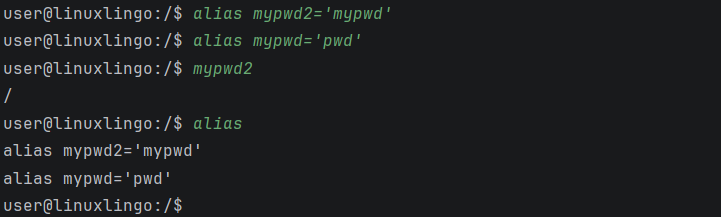
Tip: Aliases can chain. If
mypwd2is aliased tomypwdandmypwdis itself aliased to something else, LinuxLingo follows the chain automatically.
Removing aliases: unalias
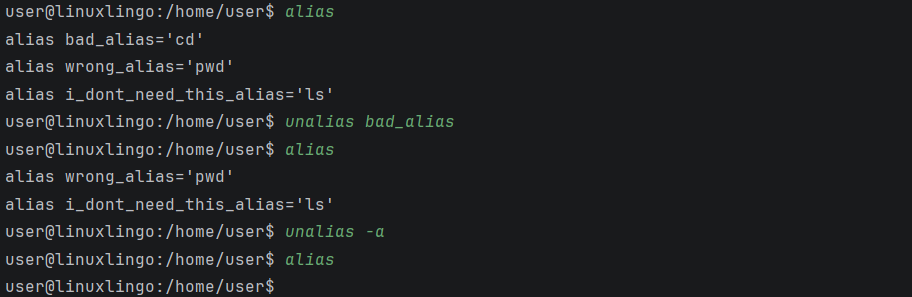
Removes one or more previously defined aliases.
Format: unalias NAME [NAME]... or unalias -a
- Provide one or more names to remove them individually.
- Use
-ato remove all defined aliases at once.
Examples:
unalias ll– removes thellalias.unalias ll la– removes bothllandla.unalias -a– clears all aliases.
Viewing command history: history
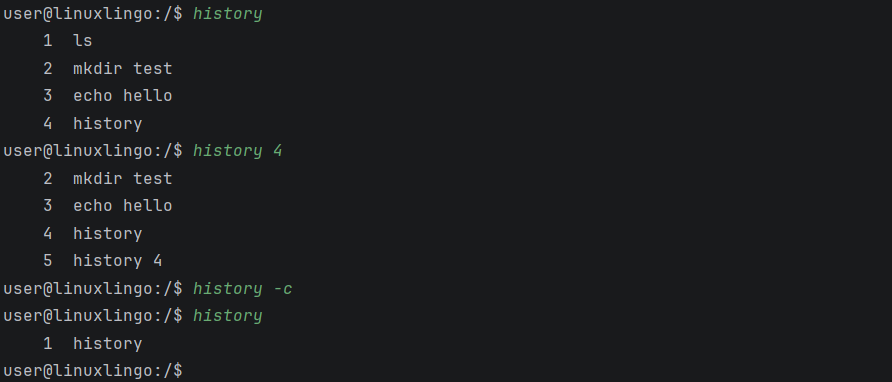
Shows a numbered list of previously entered commands.
Format: history [-c] [N]
history– shows all commands entered this session, numbered from 1.history N– shows only the lastNcommands. (including the current command)history -c– clears the history.
Example:
user@linuxlingo:/$ history
    1  ls
    2  cd /home/user
    3  mkdir projects
Note: Every command you enter is recorded, including ones that produce errors. The
historycommand itself is also recorded.
Environment Management Commands
These commands let you save, load, and manage snapshots of the virtual file system, so you can preserve your work across sessions.
Saving an environment: save
Saves the current VFS state and working directory as a named snapshot.
Format: save [-f] NAME
- The name can only contain letters, digits, hyphens, and underscores.
- Snapshots are stored in the
data/environments/folder. - If an environment with the given name already exists,
savefails to protect against accidental overwrite. Pass-f(or--force) to overwrite.
Example:
user@linuxlingo:/home/user$ save my-workspace
Environment saved: my-workspace
user@linuxlingo:/home/user$ save my-workspace
save: environment 'my-workspace' already exists. Use 'save -f my-workspace' to overwrite.
user@linuxlingo:/home/user$ save -f my-workspace
Environment saved: my-workspace
Loading an environment: load
Restores a previously saved VFS snapshot.
Format: load NAME
Example:
user@linuxlingo:/$ load my-workspace
Environment loaded: my-workspace
user@linuxlingo:/home/user$
Resetting the environment: reset
Resets the VFS to its default initial state (standard directories only).
Format: reset
Example:
user@linuxlingo:/home/user$ reset
Environment reset to default.
Listing saved environments: envlist
Lists all saved environment snapshots.
Format: envlist
Example:
user@linuxlingo:/home/user$ envlist
Saved environments:
    my-workspace
Deleting a saved environment: envdelete
Deletes a saved environment snapshot.
Format: envdelete NAME
Example:
user@linuxlingo:/home/user$ envdelete my-workspace
Environment deleted: my-workspace
Utility Commands
Viewing command help: help
Displays a list of all available shell commands, or detailed usage for a specific command.
Format: help [COMMAND]
Examples:
help– list all commands.help grep– show usage and description forgrep.
Clearing the screen: clear
Clears the terminal screen.
Format: clear
Piping and Redirection
LinuxLingo supports piping and I/O redirection, just like a real Linux shell.
Piping (|): Connects the output of one command to the input of the next.
user@linuxlingo:/$ echo "apple banana cherry" | wc -w
3
Output redirection (>): Writes command output to a file, overwriting existing content.
user@linuxlingo:/$ echo "Hello" > greeting.txt
Append redirection (>>): Appends command output to a file.
user@linuxlingo:/$ echo "World" >> greeting.txt
user@linuxlingo:/$ cat greeting.txt
Hello
World
Input redirection (<): Reads input from a file instead of the keyboard.
user@linuxlingo:/$ wc -l < data.txt
5
Command Chaining
You can chain multiple commands using operators:
| Operator | Behaviour | Example |
|---|---|---|
&& |
Run the next command only if the previous one succeeded (exit code 0). | mkdir dir && cd dir |
\|\| |
Run the next command only if the previous one failed (exit code != 0). | cd missing \|\| echo "not found" |
; |
Run the next command regardless of whether the previous one succeeded. | echo start ; ls ; echo done |
Examples:
user@linuxlingo:/$ mkdir projects && cd projects && touch readme.txt
user@linuxlingo:/projects$

user@linuxlingo:/$ cat nonexistent.txt || echo "File not found"
File not found
Glob Expansion
The shell supports glob patterns (* and ?) to match multiple files at once.
*– matches any sequence of characters.?– matches any single character.
If a glob pattern matches one or more files, it is expanded to the matching file names. If no files match, the pattern is passed through unchanged.
Example:
user@linuxlingo:/$ touch a.txt b.txt c.log
user@linuxlingo:/$ ls *.txt
a.txt
b.txt
[Tip] Tip: Glob expansion is suppressed inside single quotes:
echo '*.txt'prints the literal string*.txt.
Variable Expansion
The shell supports a limited set of shell variables, which are expanded when used with the $ prefix.
| Variable | Value |
|---|---|
$USER |
user |
$HOME |
/home/user |
$PWD |
Current working directory |
$? |
Exit code of the last command (0 = success) |
Example:
user@linuxlingo:/$ echo $HOME
/home/user

user@linuxlingo:/$ echo $?
0
[Tip] Tip: Variable expansion is suppressed inside single quotes:
echo '$HOME'prints the literal string$HOME.
Tab Completion
LinuxLingo supports tab completion for faster input:
- Press Tab to auto-complete command names and file/directory paths.
- If there are multiple matches, pressing Tab twice shows all possibilities.
Example:
- Typing
grand pressing Tab completes it togrepwhen that is the only matching command. - Typing part of a file path such as
cat reand pressing Tab completes it to a matching file when the path is unambiguous.
[Tip] Tip: Tab completion also works with alias names.
Typo Suggestions
If you type an unrecognised command name, LinuxLingo will suggest the closest matching command.
Example:
user@linuxlingo:/$ grpe "hello" file.txt
grpe: command not found
Did you mean 'grep'?
Exam System
LinuxLingo includes a built-in exam system to test your knowledge of Linux commands. Questions are drawn from a question bank covering multiple topics.
Exam command formats
The exam command supports multiple modes depending on the flags used:
exam– start an interactive exam (you will be prompted to select a topic and number of questions).exam -topics– list all available topics.exam -random– answer one random question from any topic.exam -t TOPIC [-n COUNT] [-random]– start an exam for a specific topic.
[Note] Note:
-randomhas two meanings depending on how it is used:
exam -random(by itself) is exclusive and always runs a single-question random quiz.- When used together with other flags (e.g.,
exam -t navigation -n 5 -random), it randomises the question order for the exam configured by those flags.
Starting an exam : exam
Starts an interactive exam session where you choose the topic and number of questions.
Format: exam
- Prompts you to select a topic by number or name.
- Topic names are case-sensitive.
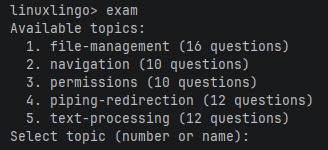
- If you enter an invalid topic number/name, LinuxLingo will reprompt you until a valid topic is provided.
- Prompts for the number of questions (press Enter for all questions in the topic).
- Shows feedback (✓ Correct! / ✗ Incorrect. and explanation) after each question.
- Shows a final score summary at the end.
In-exam control commands (skip / abort)
During an exam run, you can control the session using these special commands:
quit— skip the current MCQ or FITB question and continue to the next question. LinuxLingo will print that the question was skipped. In the final score, a skipped question is counted as incorrect.abort— terminate the entire exam immediately. LinuxLingo will show your partial score for the questions attempted so far, then return you to the main menu.
For PRAC questions:
exit— submit your current progress for that PRAC question and move to the next question.
Control command behaviour depends on the current question type:
| Context | quit |
abort |
exit |
|---|---|---|---|
| MCQ / FITB prompt | Skip the question (counts as incorrect) | Abort exam and show partial score | Not a valid answer; you will be reprompted to enter a valid input |
| PRAC temporary shell | Not applicable (use exit to submit) |
Not supported in PRAC | Submit current PRAC progress and continue |
Topic-Based Exam with CLI Arguments: exam -t
Starts an exam for a specific topic, optionally with a limited number of questions and random order.
Format: exam -t TOPIC [-n COUNT] [-random]
-t TOPIC– specify the topic (e.g.,navigation,file-management).-n COUNT– number of questions (default: all questions in the topic).-random– randomise question order.- If COUNT is greater than the number of questions in the topic, it will use all available questions.
COUNT input rules:
- If COUNT is a non-number or a decimal, LinuxLingo will reprompt for a valid COUNT.
- If COUNT is
0or negative, LinuxLingo will default to all questions in the topic.
Example: exam -t text-processing -n 5 -random
Starts a 5-question exam from the text-processing topic with questions in random order.
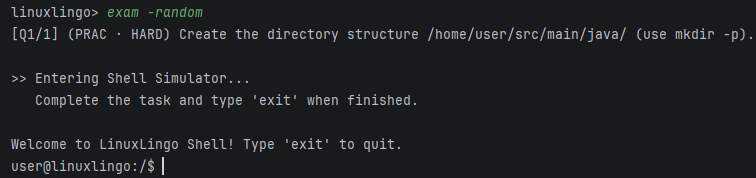
Random question: exam -random
Asks you a single random question drawn from any topic.
Format: exam -random
- Useful for quick knowledge check
- The question type can be MCQ, FITB, or PRAC.
- Shows immediate feedback and explanation, then returns you to the main menu.
Listing topics: exam -topics
Shows all available exam topics and how many questions each contains.
Format: exam -topics
Example output:
Available topics:
  1. file-management (16 questions)
  2. navigation (10 questions)
  3. permissions (10 questions)
  4. piping-redirection (12 questions)
  5. text-processing (12 questions)
[Note] Note: The exact question counts depend on the current question bank files, so they may change if the question bank is updated.
Question types
| Type | Description | How to Answer |
|---|---|---|
| MCQ (Multiple Choice) | Choose the correct option from A, B, C, D. | Type the letter of your answer (e.g., B). |
| FITB (Fill In The Blank) | Fill in the missing command or argument. | Type the missing text exactly (e.g., pwd). |
| PRAC (Practical) | Perform a task in a temporary shell session. | Execute commands in the temporary shell, then type exit when done. The VFS is automatically checked. |
For PRAC questions:
- Each PRAC question starts with a fresh VFS.
- LinuxLingo grades your work by checking whether the resulting VFS state matches what the question expects.
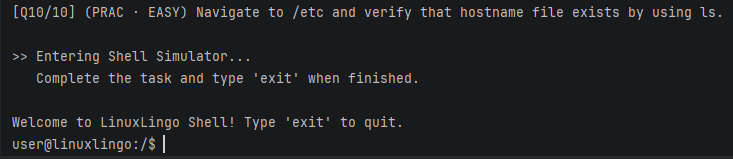
PRAC question example flow:
- The question describes a task (e.g., “Navigate to /etc and verify that hostname file exists by using ls.”).
- You enter a temporary shell session with a fresh VFS.
- You type the required commands (e.g.,
cd /etc,ls). - Type
exitto submit. - LinuxLingo checks whether the VFS matches the expected state and gives feedback.
Data Storage
LinuxLingo stores data in the data/ folder, relative to where you run the JAR file.
- Saved environments are stored as
.envfiles indata/environments/. - Question banks are stored as
.txtfiles indata/questions/. They are automatically extracted from the JAR on first run.
[!] Caution: Manually editing
.envor question bank files may cause errors if the format becomes invalid. Only edit these files if you understand the expected format.
FAQ
Q: How do I transfer my data to another computer?
A: Copy the data/ folder (which contains environments/ and questions/) to the same location relative to the JAR file on the other computer.
Q: Do shell commands affect real files on my computer?
A: No. All shell commands operate on an in-memory virtual file system (VFS). No real files are created, modified, or deleted by shell commands. Only the save command writes data to disk (in data/environments/).
Q: Can I add my own exam questions?
A: Yes. Add .txt files to the data/questions/ directory following the existing pipe-delimited format. They will be automatically loaded on the next startup.
Q: Why is the VFS empty after restarting LinuxLingo?
A: The VFS is in-memory and resets each time the application starts. Use the save command to persist your environment, and load to restore it in a future session.
Q: How do I use aliases I defined in a previous session?
A: Aliases only persist for the current shell session. You will need to redefine them each time you enter the Shell Simulator.
Known Issues
- ANSI escape codes on Windows: The
clearcommand uses ANSI escape sequences which may not work correctly on older Windows command prompts. Use Windows Terminal or PowerShell for best results. - Tab completion requires JLine: Tab completion relies on the JLine library. If JLine cannot initialise (e.g., in some IDE terminals), the shell falls back to basic line input without tab completion.
Command Summary
Main Menu
| Command | Format | Description |
|---|---|---|
| Shell | shell |
Enter the Shell Simulator |
| Exam | exam [-t TOPIC] [-n COUNT] [-random] |
Start an exam session |
| List Topics | exam -topics |
List all available exam topics |
| Random Question | exam -random |
Answer one random question |
| Exec | exec "COMMAND" |
Execute a shell command and print result |
| Exec in Env | exec -e ENV_NAME "COMMAND" |
Execute a command in a saved environment |
| Help | help |
Show available commands |
| Exit | exit or quit |
Exit the application |
| Abort (in exam) | abort |
Abort the ongoing exam and show partial results |
Shell Commands
| Command | Format | Description |
|---|---|---|
pwd |
pwd |
Print working directory |
cd |
cd [DIRECTORY] |
Change directory |
ls |
ls [-a] [-l] [-R] [DIRECTORY...] |
List directory contents |
mkdir |
mkdir [-p] DIRECTORY... |
Create directories |
touch |
touch FILE... |
Create empty files |
cat |
cat [-n] FILE... |
Display file contents |
echo |
echo [-n] [-e] [TEXT...] |
Print text |
rm |
rm [-r] [-f] FILE... |
Remove files/directories |
cp |
cp [-r] SOURCE... DEST |
Copy files/directories |
mv |
mv SOURCE... DEST |
Move/rename files |
diff |
diff FILE1 FILE2 |
Compare two files line by line |
tee |
tee [-a] FILE... |
Read stdin and write to files |
head |
head [-n COUNT] [-COUNT] [FILE...] |
Display first N lines |
tail |
tail [-n COUNT] [-COUNT] [FILE...] |
Display last N lines |
grep |
grep [-i] [-v] [-n] [-c] [-l] [-E] PATTERN [FILE...] |
Search for pattern |
find |
find [DIR] [-name PATTERN] [-type TYPE] [-size SIZE] |
Find files by name/type/size |
wc |
wc [-l] [-w] [-c] [FILE...] |
Count lines/words/chars |
sort |
sort [-r] [-n] [-u] [FILE] |
Sort lines |
uniq |
uniq [-c] [-d] [FILE] |
Remove adjacent duplicates |
chmod |
chmod [-R] MODE FILE |
Change permissions |
man |
man COMMAND |
Display command manual |
tree |
tree [DIRECTORY] |
Display directory tree |
which |
which COMMAND... |
Show if command exists |
whoami |
whoami |
Print current username |
date |
date [+FORMAT] |
Display date and time |
alias |
alias [NAME='VALUE'] |
Manage command aliases |
unalias |
unalias [-a] NAME... |
Remove aliases |
history |
history [-c] [N] |
View/manage command history |
save |
save NAME |
Save VFS snapshot |
load |
load NAME |
Load VFS snapshot |
reset |
reset |
Reset VFS to default |
envlist |
envlist |
List saved environments |
envdelete |
envdelete NAME |
Delete saved environment |
help |
help [COMMAND] |
Show help |
clear |
clear |
Clear screen |
Operators
| Operator | Description |
|---|---|
\| |
Pipe: connect output to next command’s input |
> |
Redirect: write output to file (overwrite) |
>> |
Append: write output to file (append) |
< |
Input redirect: read input from file |
&& |
AND: run next command only if previous succeeded |
\|\| |
OR: run next command only if previous failed |
; |
Semicolon: run next command unconditionally |